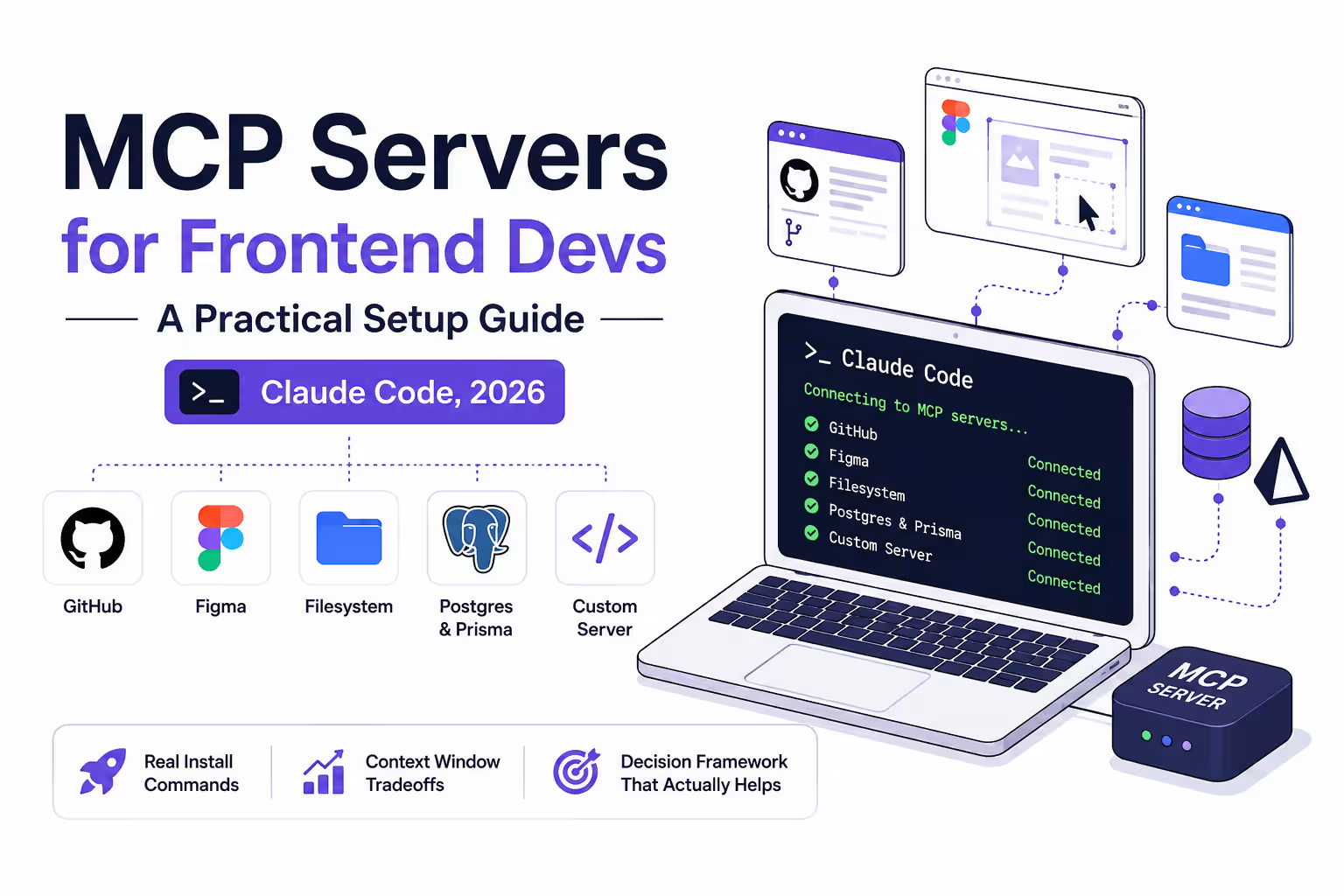
MCP Servers for Frontend Developers (Claude Code, 2026)

Written by
Sumit Patel
Published
June 16, 2026
Updated
June 16, 2026
Reading Level
Advanced Strategy
Investment
17 min read
The Brief
MCP servers for frontend developers: real install commands for GitHub, Figma, and Postgres, plus the context window tradeoffs most setup guides skip entirely.
Every Claude Code tutorial shows you what MCP is. Almost none of them tell you which MCP servers for frontend developers actually matter, in what order to install them, or how many you can run before Claude starts getting dumber. I've been using MCP with Blender for 3D modeling workflows — that's where I first understood how the protocol actually works in practice. Setting it up for frontend dev in Claude Code has different tradeoffs, different servers, and one very specific trap that most guides skip entirely: context window cost. This guide is what I researched and built before adding MCP to my Claude Code setup. Real commands. Honest limitations. A clear decision framework. No listicle padding. We'll cover the four servers that matter most for frontend developers — GitHub, Figma, Filesystem, and database access — what each one actually does to your workflow, how to install each one, and critically: how to avoid burning half your context window on tool definitions you're not even using.
Key Takeaways
7 PointsWhat MCP Actually Is (And What It Isn't)
MCP stands for Model Context Protocol. Anthropic released it in November 2024. OpenAI and Google DeepMind adopted it in early 2025. In December 2025 it was donated to the Linux Foundation's Agentic AI Foundation — meaning it's now an industry-wide open standard, not an Anthropic-only thing.
The short version: MCP is how Claude Code connects to the tools and systems you already use. Without MCP, Claude is a very smart assistant that only knows what you paste into chat. With MCP, Claude becomes an agent that can act inside your actual stack.
The practical framing: imagine never having to copy a Figma design into a screenshot and describe it in words. Claude just reads the Figma file directly. Imagine not manually copying a GitHub issue into your terminal — Claude reads the issue, understands the codebase, and addresses it. That's what MCP enables.
What MCP is NOT: - It's not a plugin system tied to one client. The same server works with Claude Code, Cursor, Windsurf, VS Code — any MCP-compliant host. - It's not magic performance uplift. Every server you add has a context window cost. This matters more than most guides acknowledge. - It's not a replacement for your terminal. For simple operations, a shell script is still more token-efficient than an MCP call.
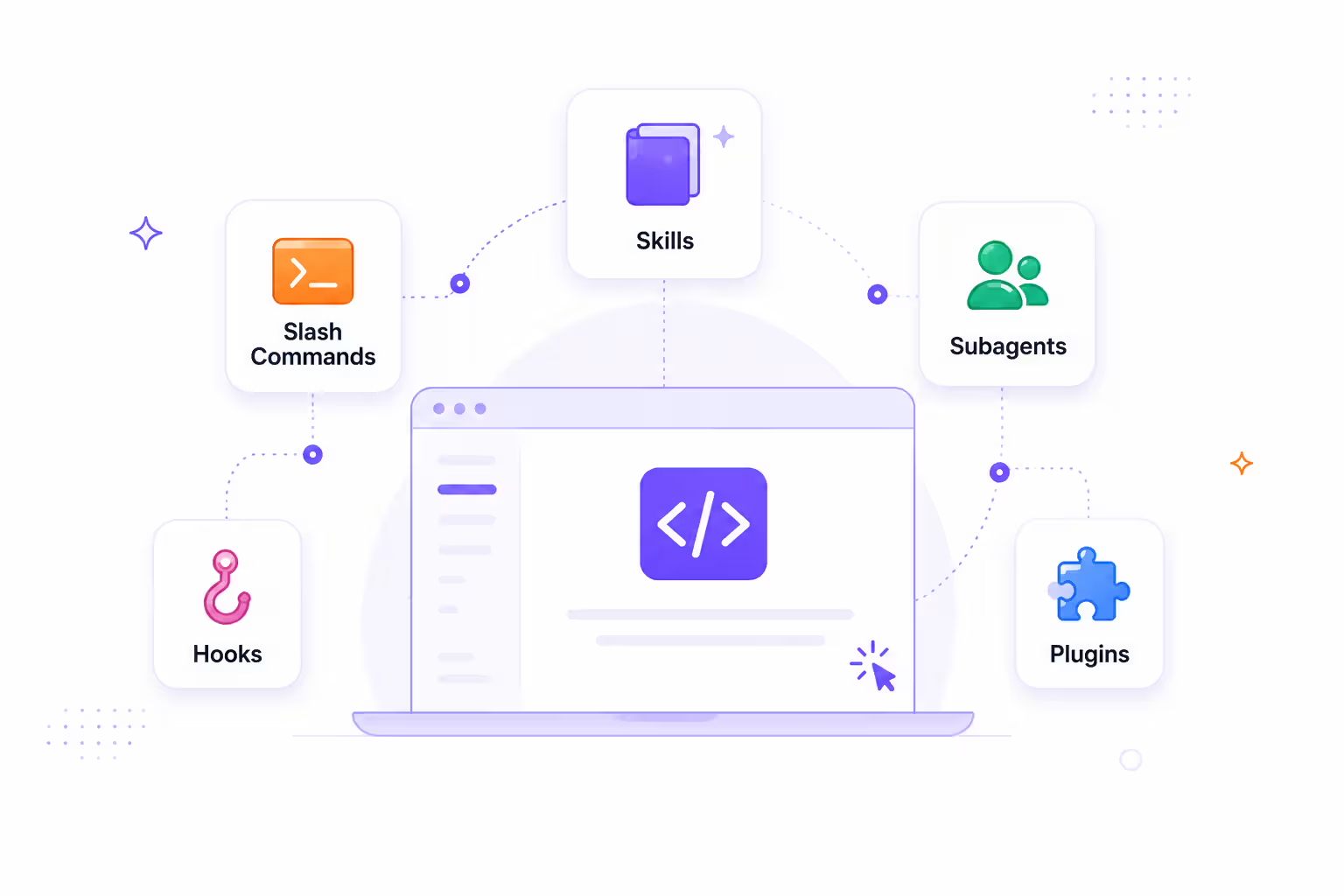
For how MCP fits alongside the rest of the customization stack — skills, subagents, hooks, and plugins — see my Claude Code skills vs subagents comparison.
The Context Window Problem Most Guides Don't Tell You
Before listing which servers to install, you need to understand this — because it changes which servers to install.
Every MCP server you connect injects its tool definitions into Claude's context window. Not when you use the tools. Before you start working.
Real numbers from the community: - A typical 5–10 server setup burns 5,000–15,000 tokens before your first prompt - One documented case: three MCP servers consumed 143,000 of 200,000 tokens — 72% of the context window burned on tool definitions before a single word of actual work - A single verbose server (like mcp-omnisearch with 20 tools) can consume 14,000+ tokens on its own
The practical consequence: the more MCP servers you have active, the less working memory Claude has for your actual codebase, your logic, and your conversation history. In a large React/TypeScript project with 80+ Redux slices, this directly degrades output quality — the same way Cursor's silent context compression does.
How Claude Code handles this in 2026:
Claude Code introduced Tool Search as a default in 2026. Instead of loading all tool definitions at session start, only tool names and server instructions load upfront. Full tool schemas load on-demand when Claude needs them for a specific task. This significantly reduces the upfront token cost.
But this doesn't mean 'install everything.' Tool Search reduces the problem; it doesn't eliminate it. The practical ceiling before performance degrades is still around 10 active servers — and 3 to 6 is the sweet spot for most frontend dev workflows.
The 4 MCP Servers for Frontend Developers You Actually Need
This is not a list of every server that exists. It's a decision guide for the 4 categories that matter in a typical React/TypeScript frontend workflow — with the specific servers worth using in each category. Every install command below runs through npx, so it's worth a quick registry check before you run one — see my hallucinated npm package write-up for why that matters.
GitHub MCP
Install first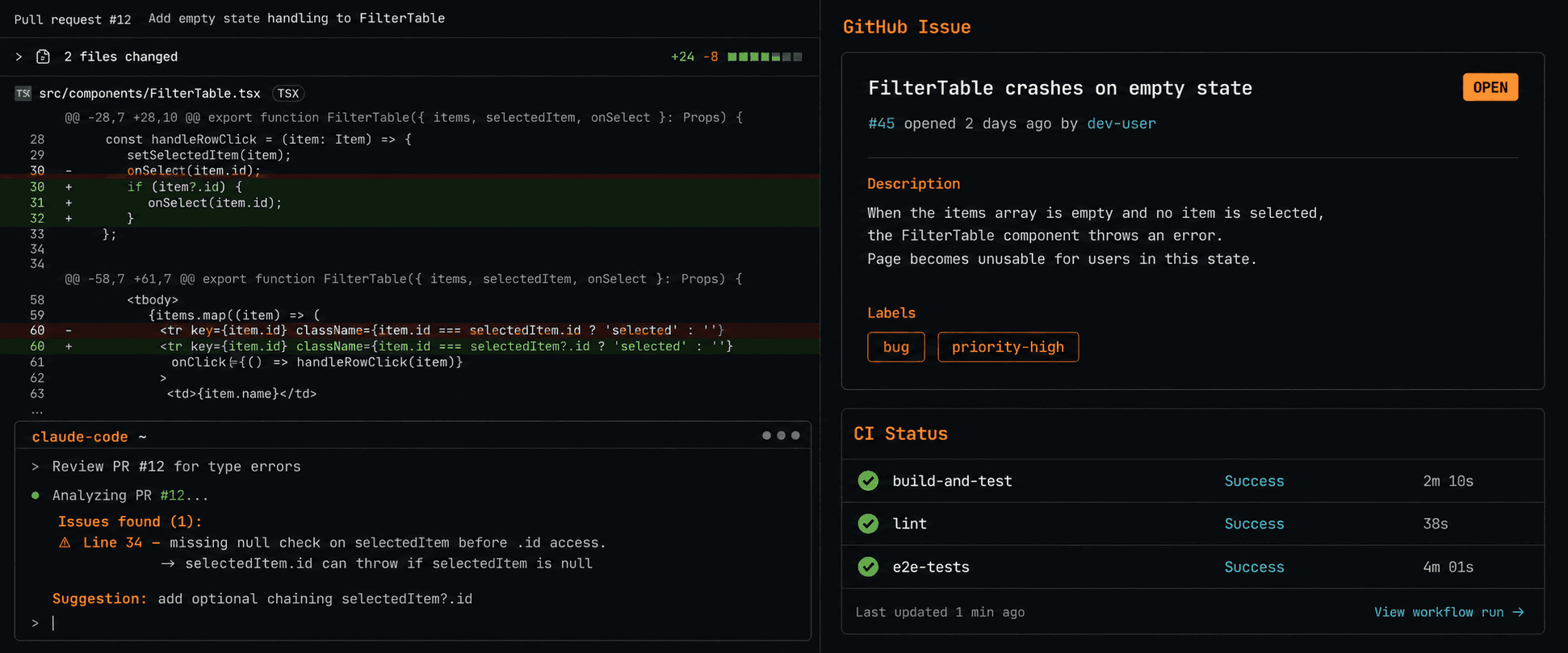
What it does
Gives Claude Code direct access to your GitHub repos — PRs, issues, CI status, code search, repository management. Claude can review PR #456 and flag problems, create an issue from a bug you just found, or check what's blocking a merge — all without you leaving the terminal.
Why it matters for frontend
Frontend work is PR-heavy. You're constantly cross-referencing issue descriptions while writing code, checking CI status, and writing PR descriptions. With GitHub MCP, Claude Code becomes a participant in that workflow — not just a code generator you context-switch away from.
Setup & Installation
HTTP transport (Claude Code — recommended)
claude mcp add --transport http github https://api.githubcopilot.com/mcp/
Note: After running, authenticate via the /mcp command in your Claude Code session. Requires a GitHub account connected to GitHub Copilot.
stdio via npx (works without Copilot — uses Personal Access Token)
claude mcp add-json github '{"command":"npx","args":["-y","@modelcontextprotocol/server-github"],"env":{"GITHUB_PERSONAL_ACCESS_TOKEN":"YOUR_TOKEN_HERE"}}'Note: Replace YOUR_TOKEN_HERE with a GitHub PAT. Generate one at github.com/settings/tokens. Never commit this token to your repo.
GitHub MCP can have 50+ tool definitions — meaningful context cost even with Tool Search. If you're working on a session focused purely on local coding with no PR/issue interaction, consider disabling it to recover tokens.
Install it. Highest-impact MCP server for most developers.
Figma MCP
Install second (if you work from Figma designs)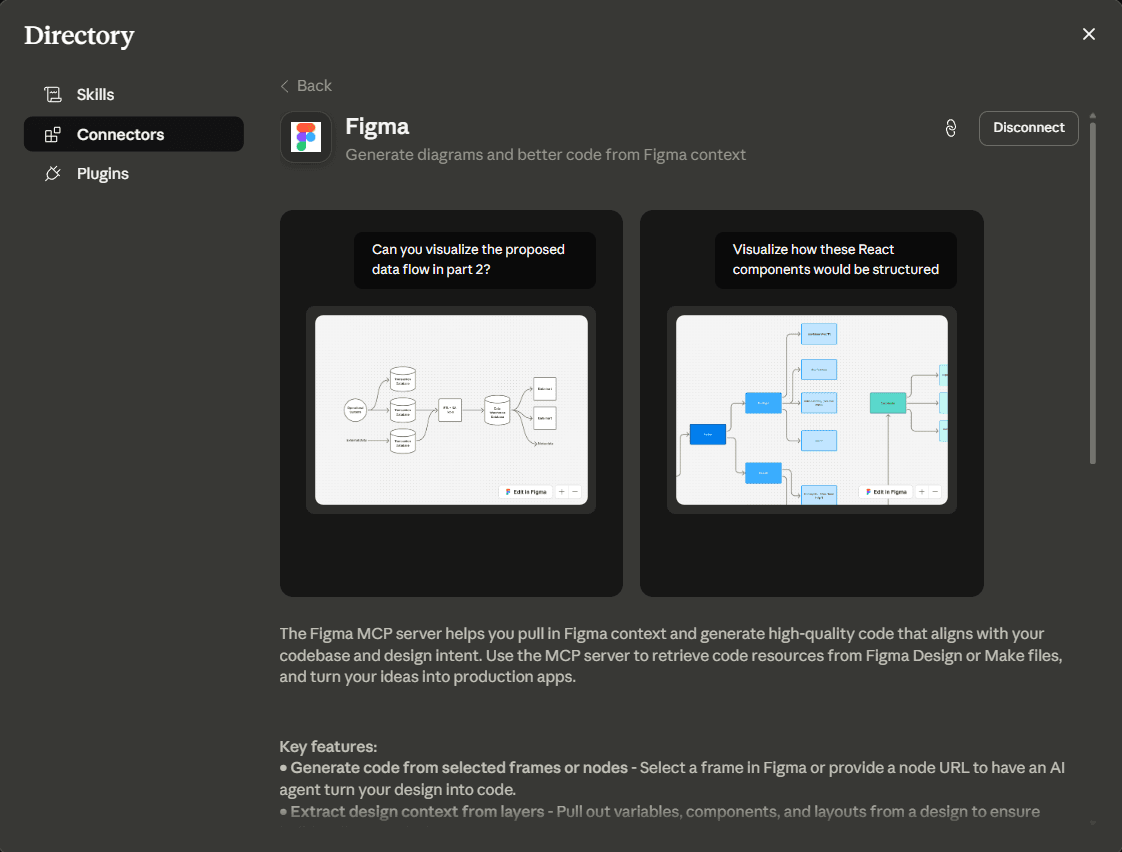
What it does
Gives Claude Code structured access to your Figma files — component trees, variables, layout constraints, design tokens. Instead of describing your design in words or pasting screenshots, Claude reads the live Figma file and generates code from it.
Why it matters for frontend
If you're implementing UI from Figma designs, you currently have two bad options: describe the design in text (imprecise) or paste a screenshot (no design token or spacing data). Figma MCP eliminates both workarounds. Claude Code can read the selected frame, understand the component hierarchy, and generate component code that matches — including variable values and constraints.
Setup & Installation
Remote MCP via Claude Code plugin (recommended for most devs)
claude plugin install figma@claude-plugins-official
Follow Steps:
Run the command above in your terminal
Restart Claude Code
Type /plugin and navigate to the Installed tab
Select the figma server and complete authentication in the browser (click Allow access)
Note: Remote server at mcp.figma.com/mcp. Broadest feature set. Most users should use this route.
Desktop MCP (for enterprise/org use cases)
Follow Steps:
Open Figma desktop app (update to latest version)
Open a Design file and switch to Dev Mode via the toolbar
Enable MCP server in the right sidebar — Figma shows the server address
Copy the URL (http://127.0.0.1:3845/mcp) and run:
claude mcp add --transport http figma-desktop http://127.0.0.1:3845/mcp
Note: Requires Figma desktop app running. Suited for organization/enterprise plans.
Figma's free Starter plan allows only 6 MCP calls per month. For any real usage, you need a paid Figma seat (Dev or Full). This is the biggest adoption blocker for indie devs — evaluate whether your Figma plan supports it before investing setup time.
High value if you work from Figma designs AND have a paid Figma seat. Low value if you're on the free plan.
Filesystem MCP
Probably skip this one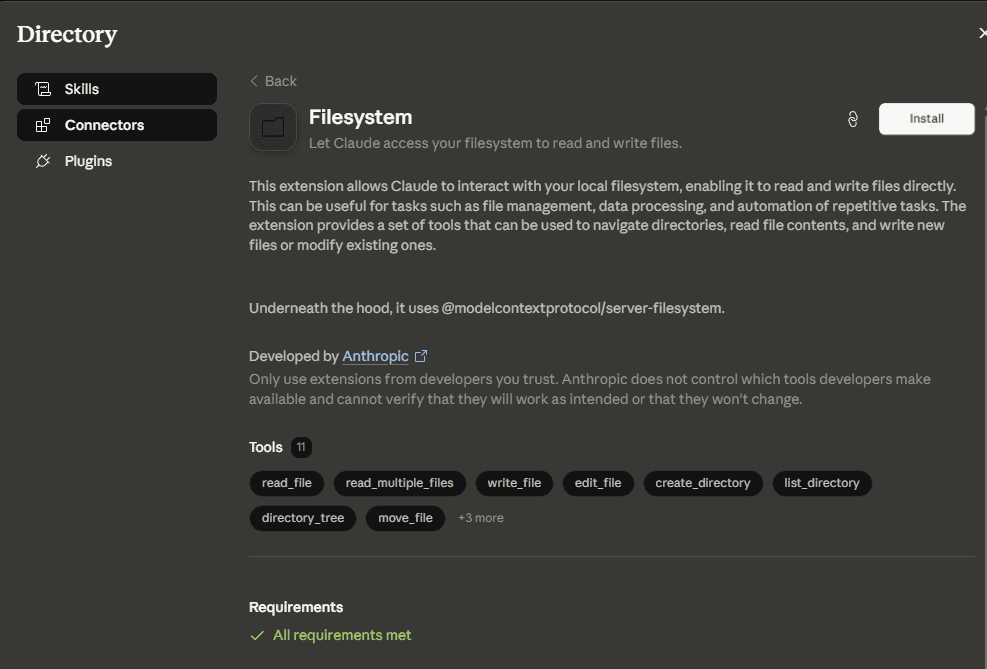
What it does
Gives Claude Code read/write access to a directory on your filesystem — outside its normal project workspace.
Why it matters for frontend
Short answer: it usually doesn't. Claude Code ships with built-in file tools that handle reading and writing inside your project. A separate filesystem MCP server is redundant for in-project work.
When it actually makes sense:
- •You need Claude Code to reference files outside the current project — like a shared design tokens directory across a monorepo
- •You want Claude to read documentation files stored in a separate location from your codebase
- •You're working in a setup where the project root and the files you need to reference are on different paths
Setup & Installation
Via npx (if you actually need it)
claude mcp add filesystem -- npx -y @modelcontextprotocol/server-filesystem /path/to/directory
Note: Replace /path/to/directory with the actual path you want Claude Code to access. Use absolute paths.
This is the server most guides list and most developers don't actually need. Claude Code already has file tools. Don't install this and burn context on it unless you have a specific cross-directory use case.
Skip unless you have a concrete cross-directory need.
Database MCP (Postgres / Prisma)
Install if your frontend work touches the database directly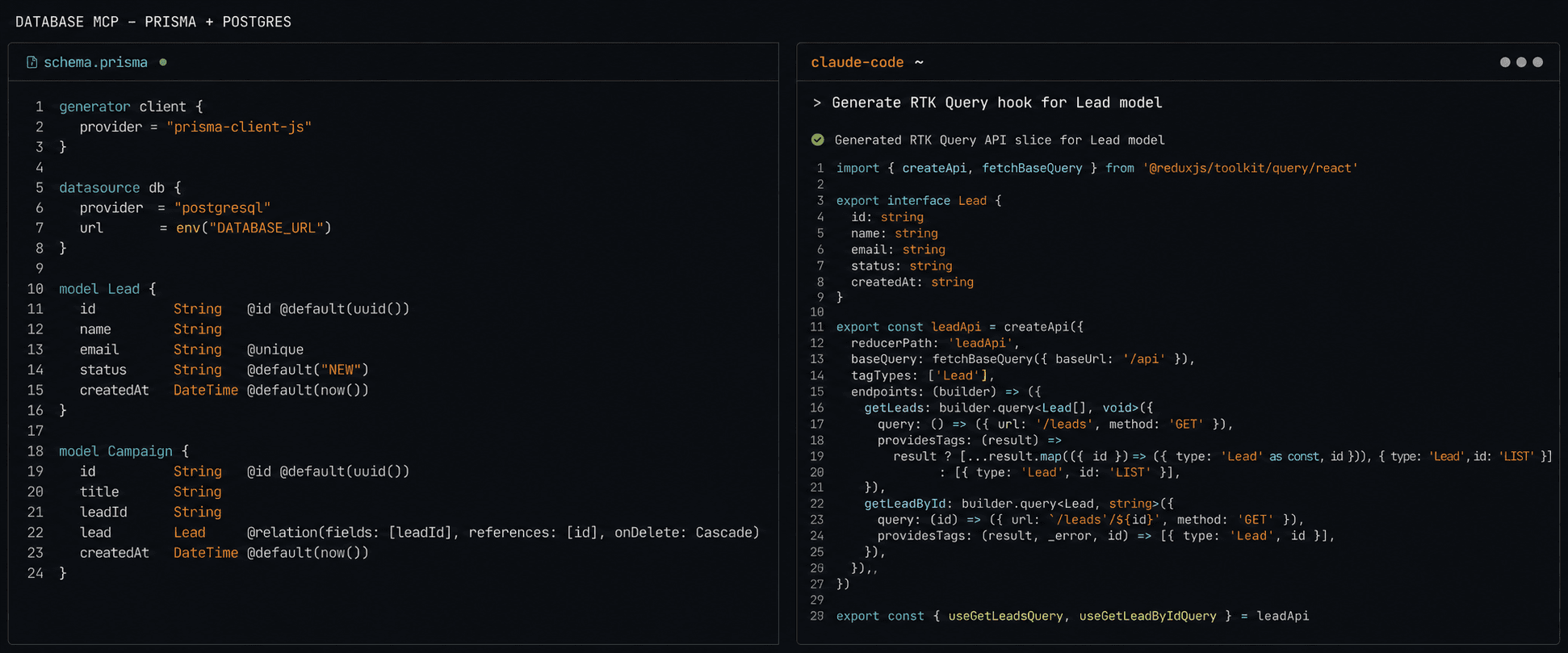
What it does
Gives Claude Code live read access to your database schema and data. Instead of pasting schema definitions into chat or describing table relationships, Claude queries the database directly to understand structure before generating API hooks, type definitions, or data models.
Why it matters for frontend
Frontend engineers working on full-stack apps — or reading Prisma schemas to build TypeScript types — spend real time copying schema info into context. With a database MCP server, Claude reads the live schema and generates accurate types, RTK Query hooks, and data transformations without manual copy-paste.
Setup & Installation
PostgreSQL MCP
claude mcp add-json postgres '{"command":"npx","args":["-y","@modelcontextprotocol/server-postgres"],"env":{"POSTGRES_CONNECTION_STRING":"postgresql://user:password@localhost:5432/dbname"}}'Note: Replace the connection string with your actual database URL. Never commit this to your repo — use an environment variable reference instead.
Safe pattern using environment variable (do this instead of hardcoding)
{ "command": "npx", "args": ["-y", "@modelcontextprotocol/server-postgres"], "env": { "POSTGRES_CONNECTION_STRING": "$DATABASE_URL" } }Note: Set DATABASE_URL in your shell or .env file. This way the .mcp.json is safe to commit.
Only configure this with read-only database credentials. Claude Code can take actions — a Claude session with write access to your production database is a risk you don't want. Create a read-only role specifically for MCP access.
High value for full-stack frontend devs. Read-only credentials only — no exceptions.
Configuration Patterns That Hold Up in Real Work
User scope vs. project scope — which one to use:
User scope (`~/.claude/settings.json`) applies to every project on your machine. Use it for servers that apply to all your work — like GitHub MCP.
Project scope (`.claude/settings.json` inside the project root) applies only to that project. Use it for project-specific servers — like a database connection or a Figma file for a specific product. Commit this file to the repo so teammates get the same setup on first clone.
Project scope overrides user scope. If you need a different GitHub token for a specific client project — like the ERP and CRM builds I run through my agency work — set it at project scope.
The credential rule:
Project-scoped config files get committed to repos. That means any secret hardcoded in `.claude/settings.json` is a secret exposed. Always reference environment variables:
{
  "mcpServers": {
    "github": {
      "command": "npx",
      "args": ["-y", "@modelcontextprotocol/server-github"],
      "env": {
        "GITHUB_PERSONAL_ACCESS_TOKEN": "$GITHUB_TOKEN"
      }
    }
  }
}
Set `GITHUB_TOKEN` in your shell profile or `.env` file (gitignored). The `.mcp.json` stays clean.
Restart after adding a server:
Both Claude Code and Cursor read MCP config at startup. Newly added servers don't load until you restart the session completely. If a server you just added isn't connecting, restart first — then debug.
The first-time approval gate:
The first time you use a project-scoped MCP server on a new clone, Claude Code will prompt for approval before connecting. This is intentional — it prevents a malicious repo from running a server on your machine automatically. Approve explicitly before the server becomes active.
The Decision Framework: Which Servers Actually Belong in Your Stack
The trap is installing every server from a list because they sound useful. Each one consumes context. The right question is not 'which servers exist' — it's 'which servers eliminate daily friction in my actual workflow.'
The signal for installing any MCP server: Are you regularly copying data from this tool into Claude's chat? If yes, that copy-paste step is your signal. MCP eliminates it.
This is the same calculus behind reviewing AI-generated code against a large, interlinked schema — see my AI code review write-up on a 25-module ERP integration for how that plays out on the backend side.
Quick decision table:
Debugging When MCP Isn't Working
Three things to check before assuming a server is broken:
Check 1: Is the server registered?
claude mcp list
This shows all registered servers and their status. A server showing as `pending approval` means it's registered but not yet authorized — approve it from the first-time prompt.
Check 2: Is the config valid JSON? Most MCP failures trace back to a syntax error in the settings file. Paste your config into a JSON validator before debugging anything else. A missing comma or trailing bracket silently breaks the entire config.
Check 3: Did you restart after adding the server? Both Claude Code and Cursor read config at startup only. If you edited the file and didn't restart, the changes don't exist as far as the agent is concerned.
For deeper issues:
claude mcp test <server-name>
Runs a single server in isolation and shows any stderr output. This is where authentication errors and missing environment variables surface.
Common auth error pattern: If GitHub MCP connects but returns empty results or permission errors, the PAT doesn't have the right scopes. For read access to repos, issues, and PRs, your token needs: `repo`, `read:org`, and `read:user`.
Node version matters: Most MCP servers launch via npx. Node 18+ is required. Node 22 LTS is the recommended version in 2026. Check with:
node --version
If you're below 18, update before debugging anything else.
Frequently Asked Questions
Strategic Summary
Final Thoughts
MCP is the right abstraction at the right time — Claude Code finally has a standardized way to connect to the tools you actually work with instead of operating on text you paste into chat. But the correct use of MCP is selective, not maximal. The developers getting the most out of it are not the ones with 20 servers installed. They're the ones who identified the two or three daily friction points — 'I keep pasting GitHub issues into context' or 'I keep describing Figma designs in words' — and installed exactly the servers that remove those specific friction points. Start with GitHub. Add Figma if your Figma plan supports it. Add a database server with read-only credentials if you regularly work against a schema. Check your context usage with /context. Remove servers you're not actively using. That's the setup that actually improves your output quality — instead of burning your context window before you've written a single line of code. --- Related: [Claude Code vs Cursor on a 25-Module ERP — Cursor Won, But Not Where You'd Expect](/ai-tools-for-developers/claude-code-vs-cursor-25-module-erp-honest-comparison) — context window reliability is the same core issue, different angle. *Written by Sumit Patel — Senior Frontend Engineer & Technical Writer, StackNova HQ. Published June 2026.*
If you've set up MCP in Claude Code and hit something this guide didn't cover — auth errors, a server that's not behaving, or a context window question — drop it in the comments. I'll add it to the debugging section.
Building ERP, CRM, or complex SaaS frontend and want a second opinion on Claude Code configuration or tool choice? Reach me via Upwork, Contra, or stacknovahq.com/contact.
Next Up
Continue your research
Sources & Research
Anthropic — Claude Code MCP Documentation
https://code.claude.com/docs/en/mcp
Figma — Claude Code MCP Setup (Official Help)
https://help.figma.com/hc/en-us/articles/39888612464151-Claude-Code-and-Figma-Set-up-the-MCP-server
GitHub MCP Server — anthropics/claude-code GitHub
https://github.com/pcantalupo/github-mcp-setup
Dev.to — Your MCP Server Is Eating Your Context Window
https://dev.to/amzani/your-mcp-server-is-eating-your-context-window-theres-a-simpler-way-3ja2
Scott Spence — Optimising MCP Server Context Usage in Claude Code
https://scottspence.com/posts/optimising-mcp-server-context-usage-in-claude-code
Bito — Top 12 MCP Servers for Claude Code in 2026
https://bito.ai/ai-tools/claude-code-mcp-servers/
Nimbalyst — Best Claude Code MCP Servers 2026
https://nimbalyst.com/blog/best-claude-code-mcp-servers/
DevBolt — MCP Context Window Optimization 2026
https://www.devbolt.dev/blog/mcp-context-window-optimization