AI-Generated Code Accessibility: React Fix Checklist

The short version
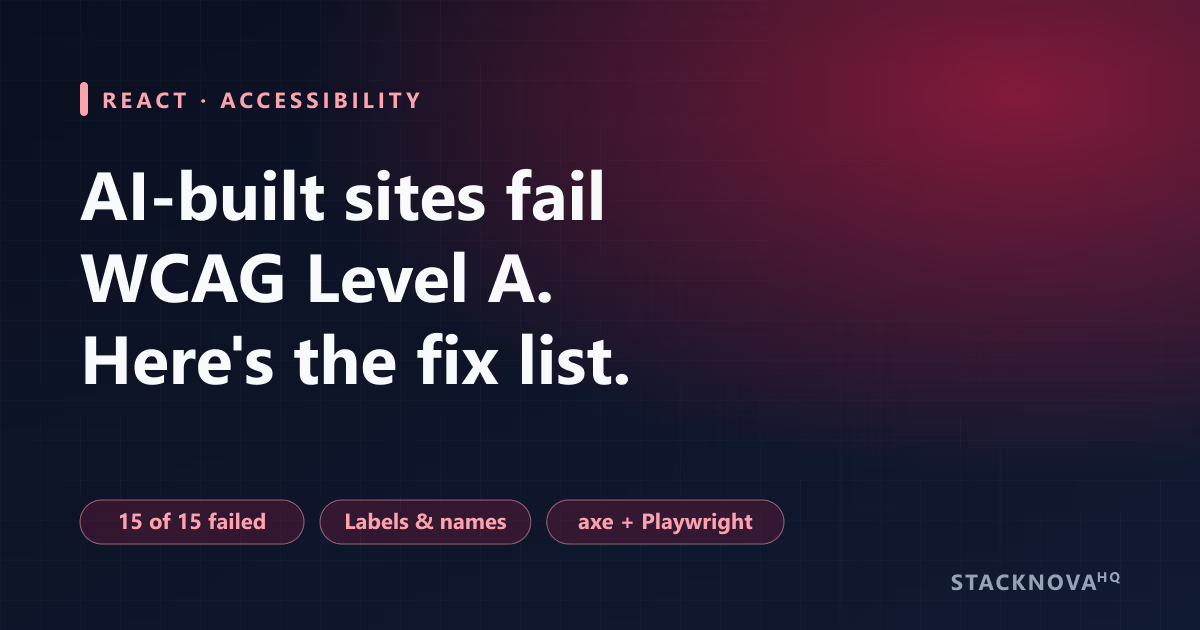
- 1The study → AudioEye had tools from OpenAI, Anthropic, Google, xAI and Lovable build 15 sites from the same briefs. All 15 failed WCAG Level A, the most basic level.
- 2Most common failures → links with no descriptive text, buttons screen readers can't identify, form fields with no labels.
- 3Fix → a short rule file for your coding agent, lint rules, and an automated axe test that drives the real UI.
In October 2026, the accessibility company AudioEye published a study of websites built entirely by AI coding tools. Five tools, from OpenAI, Anthropic, Google, xAI and Lovable, each built three sites from the same briefs: a news site, an online store and a financial services site. Every one of the 15 sites failed WCAG Level A, the most basic conformance level. AudioEye sells accessibility services, so read the framing with that in mind. The specific failures it lists, though, will look familiar to anyone who has reviewed AI-written React. This guide goes through each one with the fix, then sets up the two automated checks that would have caught most of them.
What the Study Found
The sites were tested against WCAG 2.2 Level AA. Headline numbers from the published summary:
- All 15 AI-built sites failed Level A.
- 306 distinct issues, appearing more than 59,000 times across the pages.
- An average of 55 issues per page; the AI-built online stores averaged 174 per page.
- 91% of issues were rated medium or high severity, and 33% completely blocked a task. 13 of the 15 sites had at least one blocker.
- Switching tools didn't help. As the report puts it, a different tool gives you "a different version of the same problem."
Failure 1: Links and Buttons With No Accessible Name
Icon-only buttons (close, menu, cart, delete) are the classic AI-generated failure. A screen reader announces them as "button" with no idea what they do. Repeated "Read more" links have the same problem, because a list of links pulled out of context reads as "Read more, Read more, Read more".
Give every interactive element a name a screen reader can announce.
// ❌ Typical generated code
<button onClick={onClose}><XIcon /></button>
<a href={`/posts/${post.slug}`}>Read more</a>

// ✅ Fixed
<button type="button" onClick={onClose} aria-label="Close dialog">
  <XIcon aria-hidden="true" />
</button>
<a href={`/posts/${post.slug}`}>
  Read more<span className="sr-only"> about {post.title}</span>
</a>
Failure 2: Form Fields With No Label
The study found unlabelled fields concentrated at checkout and login, which are the forms where a blocked user loses the most. A placeholder isn't a label: it disappears as soon as you type and many screen readers don't treat it as a name. Errors need to be connected to the field too, not just shown in red.
A visible label, a programmatic link to the error, and an invalid state.
<label htmlFor="email">Email address</label>
<input
  id="email"
  name="email"
  type="email"
  autoComplete="email"
  aria-invalid={Boolean(errors.email)}
  aria-describedby={errors.email ? "email-error" : undefined}
/>
{errors.email && (
  <p id="email-error" role="alert">{errors.email}</p>
)}
Failure 3: Skip Links That Don't Move Focus
This is the most revealing bug in the study. Twelve of fifteen sites included a "Skip to content" link, so the tools knew the pattern. None wired up the target, so pressing it did nothing for keyboard users. The usual cause is linking to a main element that isn't focusable.
A skip link only works if the target can receive focus.
// layout.tsx
<a href="#main" className="sr-only focus:not-sr-only">Skip to content</a>
<Header />
<main id="main" tabIndex={-1} className="outline-none">
  {children}
</main>
Failure 4: Issues That Only Appear in Use
Nearly half of the issues in the study only showed up during interaction. That's why reading the diff doesn't catch them. The common ones in React apps:
- Menus and dialogs that don't trap or return focus. The native <dialog> element opened with showModal() handles focus and the Escape key for you; prefer it over a hand-built div overlay.
- Custom dropdowns built from divs with no keyboard support. Use a native <select> or a tested component library instead.
- Error states announced only by colour. Pair colour with text and an icon, and connect the text with aria-describedby.
- Pinch-zoom disabled with maximum-scale=1 or user-scalable=no in the viewport meta tag. Remove both.
- Tap targets that are too small. WCAG 2.2 sets a minimum target size of 24 × 24 CSS pixels (success criterion 2.5.8, Level AA).
- Text contrast below 4.5:1 for normal text (criterion 1.4.3, Level AA). Light grey on white is the usual offender.
Make the Agent Check Its Own Work
Coding agents follow project instructions well when the rules are specific. Add a short accessibility section to your CLAUDE.md, AGENTS.md or equivalent rules file:
Paste into CLAUDE.md (Claude Code) or your agent's rules file.
## Accessibility (required for all UI changes)
- Every <button> and <a> has a visible text name or aria-label. Icons get aria-hidden="true".
- Every form field has a <label htmlFor>. Errors use aria-describedby + aria-invalid.
- Use native elements first: <button>, <select>, <dialog> with showModal().
- Skip-link targets must be focusable (tabIndex={-1}).
- Never set maximum-scale or user-scalable=no.
- Interactive targets are at least 24x24px. Body text contrast is at least 4.5:1.
- After UI changes, run `npm run test:a11y` and fix every violation before finishing.
Automate the Checks
Two layers catch most of the issues above. Lint rules flag static problems as you type, and an axe scan that drives the real page catches the rest, including some that only appear after interaction.
tests/a11y.spec.ts: scan the checkout page before and after a failed submit.
import { test, expect } from "@playwright/test";
import AxeBuilder from "@axe-core/playwright";

const WCAG = ["wcag2a", "wcag2aa", "wcag21a", "wcag21aa", "wcag22aa"];

test("checkout has no WCAG A/AA violations", async ({ page }) => {
  await page.goto("/checkout");
  let results = await new AxeBuilder({ page }).withTags(WCAG).analyze();
  expect(results.violations).toEqual([]);

  // Interaction states hide half the issues: test them too.
  await page.getByRole("button", { name: "Place order" }).click();
  results = await new AxeBuilder({ page }).withTags(WCAG).analyze();
  expect(results.violations).toEqual([]);
});Static: eslint-plugin-jsx-a11y
Flags missing alt text, labels without controls, click handlers on non-interactive elements and similar issues. Next.js's ESLint config already includes a subset of its rules; enabling the plugin's recommended set covers more.
In the browser: axe-core with Playwright
Load each key page, open the menus and dialogs, submit a form with errors, then run an axe scan at each step. Fail CI on any violation.
Frequently Asked Questions
Strategic Summary
Final Thoughts
AI coding tools produce accessible-looking markup that often fails in use: the skip link exists but goes nowhere, the button has an icon but no name, the field has a placeholder but no label. Fix it the same way you'd fix any recurring bug class. Write the rule down where the agent reads it, lint for the static cases, and run an axe scan that exercises the interactive states in CI. For the broader habit of checking AI output before it ships, see how to debug AI-generated code and what AI code review catches and misses. --- Last reviewed: October 27, 2026. Study figures are from AudioEye's published summary as distributed by Stacker in October 2026. WCAG criteria are from W3C's WCAG 2.2. No affiliation with AudioEye or any tool mentioned.
Run the axe test above on a page your AI agent built last week and tell me how many violations it found.
Next Up
Continue your research
Sources & Research
Stacker / KVIA: Study: AI coding tools do not write accessible code (AudioEye, October 2026)
https://kvia.com/stacker-ai/2026/10/14/study-ai-coding-tools-do-not-write-accessible-code/
W3C: Web Content Accessibility Guidelines (WCAG) 2.2
https://www.w3.org/TR/WCAG22/
Deque: axe-core Playwright integration
https://github.com/dequelabs/axe-core-npm/tree/develop/packages/playwright
eslint-plugin-jsx-a11y
https://github.com/jsx-eslint/eslint-plugin-jsx-a11y